
Overview
OnShelf uses your student information system (SIS) roster to set up your students, staff and guardians. There are two ways to send that roster to OnShelf: ClassLink or SFTP. This guide covers ClassLink first, then SFTP.
Connecting ClassLink sets up the link, and your first sync follows. It brings in students, staff and guardians for every school your district shares with Bookmarked in ClassLink. That sync emails no one: staff wait in a review list, and guardian invitations are off. Inviting staff and guardians are separate steps that you control.
Who This Is For
District Superintendent/Admin accounts.
Librarians and teachers: you won't see SIS Integration on your account. Please ask your district administrator, or email support@bookmarked.com.
Prerequisites
- You can sign in to OnShelf with a Superintendent/Admin account.
- For ClassLink: the person who connects needs both an OnShelf Superintendent/Admin account and Tenant Administrator access to your district's ClassLink account. This is often your technology director.
- For ClassLink: Bookmarked has prepared your district (see "Before you start" below).
- For SFTP: your technology director or SIS administrator is available to set up the file transfer.
Good to know before you start
- ClassLink data comes in only when a sync runs. There is no automatic daily schedule running right now. The Schedule line on your ClassLink Sync Status card reads Disabled.
- Staff are not emailed when ClassLink brings them in. They wait in a review list. Nobody receives an invitation until an administrator selects them and sends it.
- ClassLink brings in students, staff and guardians. It does not create classrooms. The Classrooms Synced count on the ClassLink card reads 0.
- Guardian invitations are off by default for every campus.
- You don't need the Enable Campus Sync button. It saves a setting only. It doesn't start a sync or change which schools your syncs include.
- Choose your campus first. The campus selector is at the top left of every page. If you change the campus while you are on the Admin page, it returns you to the Users tab.
Choosing your method
| ClassLink | SFTP | |
|---|---|---|
| Your district already uses ClassLink | Yes, choose this | |
| You want to send your own files on your own schedule | Yes | |
| District IT policy requires a file transfer you control | Yes | |
| You do not use ClassLink | Yes | |
| You want OnShelf classrooms built from your class rosters | Yes (SFTP files include classes and enrollments) |
Part 1: ClassLink
Before you start: Bookmarked prepares your district
- Tell your Bookmarked representative that you want to use ClassLink.
- Ask your ClassLink administrator to approve Bookmarked in ClassLink, so your district's ClassLink account is shared with us.
- Bookmarked links your ClassLink account to your OnShelf district and matches each of your campuses to its ClassLink school. We will tell you when this is done.
Your first sync includes every school you share with Bookmarked in ClassLink. If a school isn't set up in OnShelf yet, the sync adds it. To leave a school out for now (or a type of data, such as students), change what you share with Bookmarked in ClassLink before you connect.
Find the SIS Integration screen
- Choose a campus in the campus selector at the top left.

- Click Admin in the top navigation. The page opens on the Users tab.
- Click the SIS Integration tab.
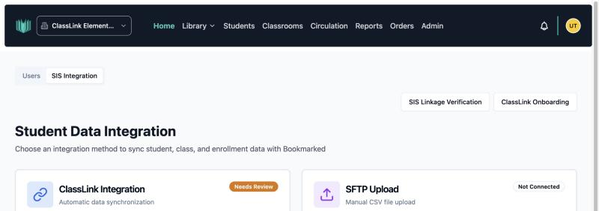
Connect ClassLink
- On the ClassLink Integration card, click Connect to ClassLink.
 If the card shows Manage Connection instead, your district is already connected. Skip to "Check your connection."
 - ClassLink opens. Sign in with your ClassLink Tenant Administrator account and approve OnShelf.
- You return to OnShelf. The ClassLink connection panel shows your progress, your district's name, and a short message about the result.
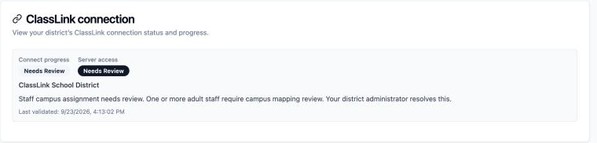
Your Bookmarked representative will be on hand for your first connection.
Check your connection
- Go to Admin, then SIS Integration.
- Scroll to ClassLink Sync Status. It shows the campus selected at the top left.
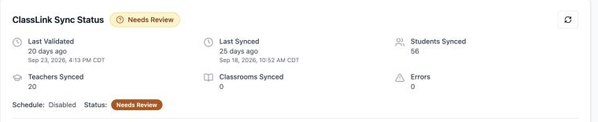
- Read the card:
- Last Validated: when OnShelf last checked the connection to ClassLink.
- Last Synced: when roster data last came in from ClassLink.
- Students Synced, Teachers Synced, Classrooms Synced, Errors: what the last sync brought in. Classrooms Synced stays at 0 for ClassLink.
- Schedule and Status: the schedule (Disabled right now) and the result of the last sync.
- For the full connection status, click Manage Connection on the ClassLink Integration card, or ClassLink Onboarding at the top right. Both open the same page. If something needs attention, the ClassLink connection panel says what in plain language.
Both times are shown with the date and time in your district's local time, plus a "how long ago" reading. The two can differ: a connection can be checked today while the last data came in earlier.
How ClassLink data gets updated
ClassLink data comes into OnShelf only when a sync runs. There is no automatic daily schedule running right now, so changes in ClassLink do not appear in OnShelf on their own. Last Synced on the ClassLink Sync Status card tells you when data last came in.
When you are ready for new ClassLink data, email support@bookmarked.com and we will start a sync.
Part 2: Your ClassLink staff
When ClassLink brings in your staff, they are placed in a review list marked Staged. Nobody receives an email and nobody can sign in until an administrator selects them and sends an invitation. This lets you check the list before anyone hears from OnShelf.
Review and invite your ClassLink staff
- Go to Admin, then SIS Integration.
- Click Manage Connection on the ClassLink Integration card, or ClassLink Onboarding at the top right.
- Scroll to Review ClassLink Staff and choose a campus from the Campus list. The number after each campus is how many staff are waiting. This list is separate from the campus selector at the top of the page.
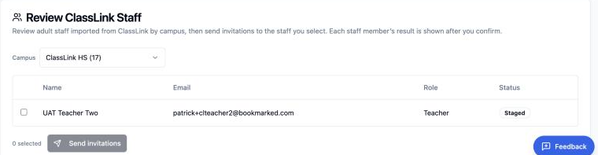
- Each row shows the person's name, email, role and status.
- Check the box next to each person you want to invite.
- Click Send invitations. There is no confirmation step, so the invitations go out right away.
- Each person's status changes to Invited, with "Invitation sent" underneath. Everyone you didn't select stays Staged.
The invitation comes from noreply@bookmarked.com with the subject "You're Invited to Join Bookmarked!". It names your district, the campus and the person's role, and the Accept Invitation link works for 7 days.
After someone accepts, they show as Active on the Users tab. The review list still shows them as Invited: it shows who was sent an invitation, not who accepted. Lists longer than 50 load in pages, so click Load more at the bottom to see the rest.
Resend an invitation
- Go to Admin. The Users tab opens.
- Find the person.
- Click Resend Invite on their row. It appears only for people who never finished setting up their account.
- Check the details and click Send Invite.
If the person already set a password and just can't get in, ask them to use Forgot Password on the OnShelf sign-in page instead.
Adding another district administrator
Email support@bookmarked.com with the person's name, email and the campus they should be attached to. Bookmarked sends the invitation with a campus attached so it can be accepted.
Part 3: Guardian invitations from ClassLink
ClassLink brings in guardians who are linked to a student in your SIS. Each campus has an Auto-invite Parents setting on the ClassLink Sync Status card. It is off by default.
- When it is off, guardians are added to OnShelf but are not emailed.
- When it is on, guardians who are new to OnShelf in a sync are emailed an invitation. Guardians already in OnShelf are not invited automatically.
Right now the Auto-invite Parents setting is locked on every campus, along with the schedule. The card says the "schedule and invite settings stay locked." If you would like guardian access for your families, please talk with your Bookmarked representative.

What guardians receive
An email from noreply@bookmarked.com with the subject "You're invited to Bookmarked" and an Accept invitation link. The link works for 7 days.
Part 4: SFTP
SFTP lets your district send roster data on your own schedule, using CSV files in OneRoster format. You control when data moves, which gives you full visibility into exactly what is in the system.
Create your SFTP connection
- Go to Admin, then SIS Integration.
- On the SFTP Upload card, click Create SFTP Connection. If your district already has one, the button reads View SFTP Details.
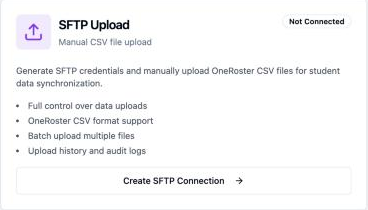
- Your connection details are listed: host, port, username and password.
- Save these securely. Your technology director needs them to set up the transfer on the district side.
Preparing your file
Your export must be in OneRoster v1.1 format. That is the standard set of seven files:
```
manifest orgs academicSessions users
courses classes enrollments
```
Most districts already produce this for other applications, so nothing you currently run should need to change.
Two notes on content:
- We do not need demographic fields, including socioeconomic status, and we will not use them if they arrive. Please leave them out.
- The smallest set of data that does the job is the right target, not the largest set available. Your Bookmarked contact can help you decide what that is for your goals.
Uploading
- Prepare your files using the OneRoster template.
- Connect to the SFTP server using your connection details and an SFTP client. Your technology director will normally handle this.
- Upload the files.
- OnShelf picks up new files within a few minutes of upload and processes them automatically.
- Check Admin, then SIS Integration. The SFTP Connection Status card shows the last activity, the number of students, classes and enrollments synced, and any that failed.
Staff who arrive in an SFTP file are not emailed automatically. Invite them from Admin, then Users.
When to send an updated file
We recommend building a daily automated send with your IT department. If that is not possible:
- At the start of each semester or grading period
- After significant enrollment changes, such as new students, withdrawals, or class reassignments
- Any time the student count in OnShelf does not match your SIS
Checking your integration
After a ClassLink sync or an SFTP upload:
- Open Admin, then SIS Integration, and read the ClassLink Sync Status or SFTP Connection Status card for each campus.
- Confirm the student count matches your expected enrollment.
- Confirm there are no errors on any campus.
- SFTP districts: confirm a teacher can sign in, open a classroom and see their students.
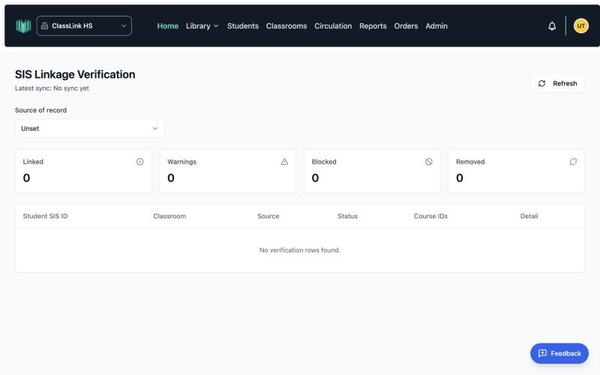
You can also see sync health for every campus on your Superintendent Dashboard, under SIS Sync Health.
Troubleshooting
| What you are seeing | What to check |
|---|---|
| Your ClassLink card shows Manage Connection, not Connect | Your district is already connected. Use Manage Connection to see its status. |
| Students missing from a campus | ClassLink: check Last Synced on that campus's card. Confirm the school is shared with Bookmarked in ClassLink, then email support@bookmarked.com with the campus name. SFTP: confirm the upload included all campuses and re-send the full district file. |
| Changes you made in ClassLink are not in OnShelf | ClassLink data comes in only when a sync runs. Check Last Synced, then email support@bookmarked.com. |
| The ClassLink connection panel says something needs review | The message names what needs attention. Email it to support@bookmarked.com if you're not sure what to do. |
| No students arrived after your first ClassLink sync | One of the schools you share in ClassLink may not match a campus in OnShelf, which stops the roster from loading. Email support@bookmarked.com and we will fix the match and run the sync again. |
| Teachers have no classrooms after a ClassLink sync | Expected. ClassLink does not create classrooms in OnShelf. |
| A staff member did not get their invitation | Ask them to check spam for mail from noreply@bookmarked.com. Invitations expire after 7 days. Use Resend Invite on the Users tab. If they already set a password, they can use Forgot Password. |
| Student count looks too low | SFTP: confirm the file includes all grade levels and campuses, and check for formatting errors. ClassLink: confirm your ClassLink account shares every school and grade level with Bookmarked, then email support@bookmarked.com. |
| Teachers cannot see their students (SFTP) | Confirm class and enrollment data was included. Check the teacher is assigned to the correct classroom. |
Getting Help
Contact your Bookmarked representative, or email support@bookmarked.com.