This article is for OnShelf Review + Engage. Looking for OnShelf (original) help? Click here for OnShelf (original) articles.
How to use the Compliance Triage Queue to find flagged books, make vetting decisions, and track challenged or banned titles.
Why This Matters: Reviewing books isn't just about applying labels — it's about building a defensible process. OnShelf validates your collection against state mandates so you can move forward with confidence, knowing your library is compliant and your students are protected.
1. Finding the Compliance Triage Queue
Step 1: Navigate to the Library
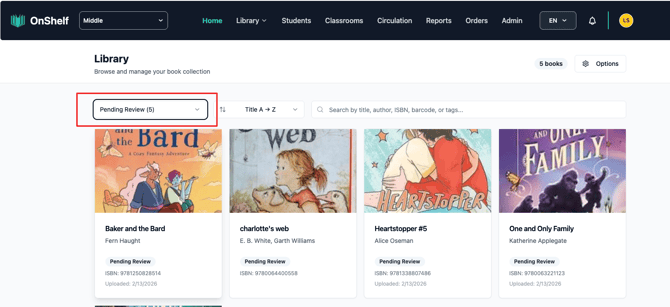
Click Library in the top navigation bar.
Step 2: Filter for Pending Review
Use the status filter dropdown and select Pending Review. This shows any books flagged and waiting for your vetting decision.
If the count shows zero, all books have already been reviewed — great news!
Tip: If your Pending Review count is zero, take a deep breath! This means your collection is fully vetted against current criteria. You don't need to do anything until new books are added or regulations change.
2. Identifying a Flagged Book
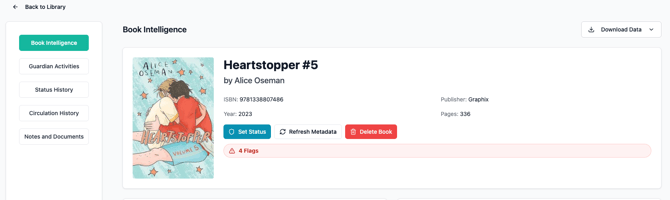
When a book has been flagged from external sources — such as banned book lists — it will display a flag indicator on the Book Intelligence page.
Books that have not been flagged will show a green "No Flags Detected" badge instead.
3. Submitting a Vetting Decision
Step 1: Open the Book Detail Page
Click on the flagged book to open its detail page.
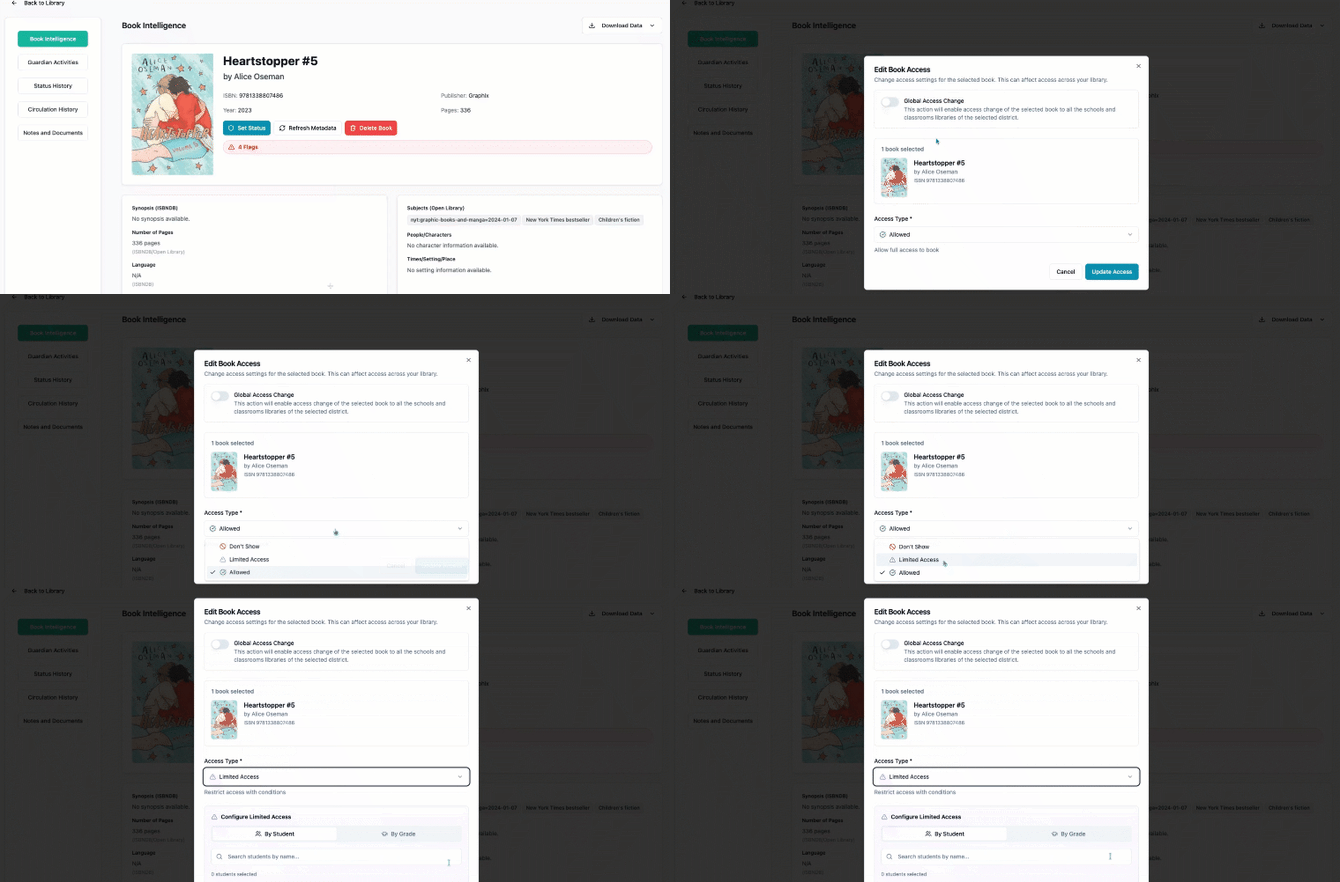
Step 2: Click Set Status
Click the Set Status button.
Step 3: Choose a Status
Select one of the following:
- Allowed — Approved for circulation
- Limited Access — Restricted availability
- Don't Show — Hidden from the catalog entirely
Tip: The Book Intelligence tab provides subjects, character lists, and synopsis information to help you make an informed decision.
Important — Sync Times: Once you set a status (e.g., changing a book to "Allowed"), the system updates the risk detection immediately. However, the visual "Pending Review" tag or status badge may take up to 24 hours to update across all Classroom views. If you don't see the change instantly, don't worry — it's processing!
4. Tracking Challenges and Bans
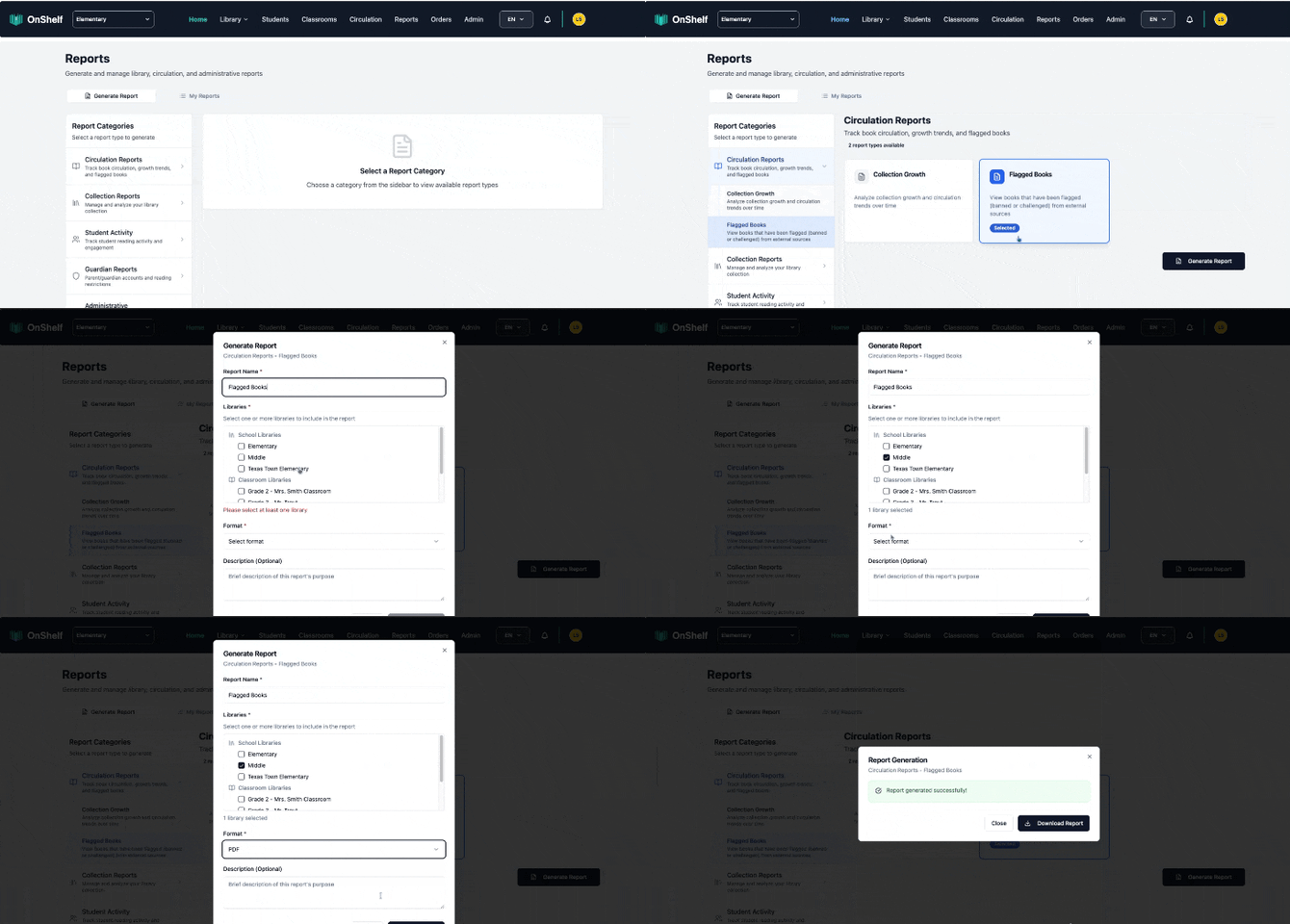
Step 1: Navigate to Reports
Click Reports in the top navigation.
Step 2: Open Circulation Reports
Select Circulation Reports and look for the Flagged Books report. This shows books flagged from external banned or challenged book lists.