1. Logging In to OnShelf V2
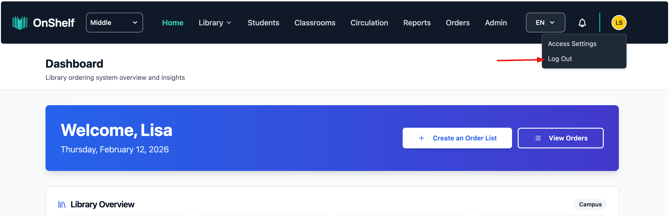
Navigate to the OnShelf V2 login page in your web browser. You'll see the Bookmarked logo along with fields for your Username and Password. If your district uses Google accounts, you can also sign in using the Google SSO option.
Enter your credentials and click Sign In to access the platform.
2. Exploring the Dashboard
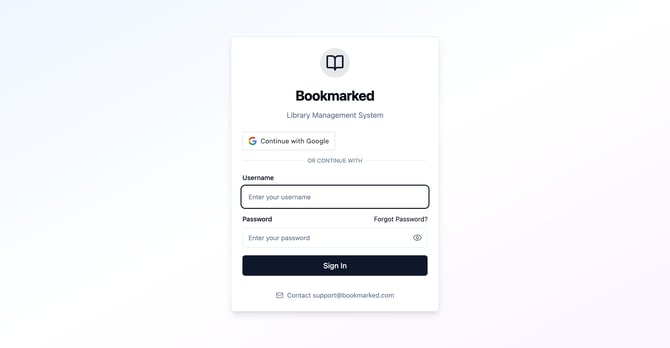
After signing in, you'll land on the Dashboard — your home base in OnShelf. What you see here depends on your role.
3. Finding Your Profile (Avatar)
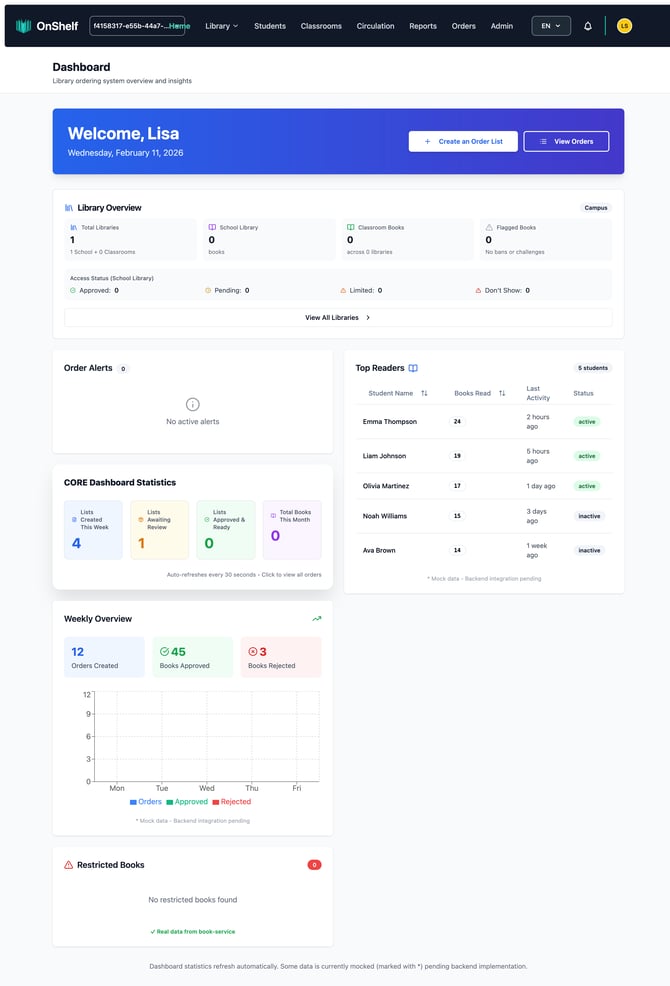
In the top-right corner of any page, you'll see a small circle with your initials — that's your avatar. Click on it to open the User Menu.
The User Menu gives you two options:
- Access Settings / Settings — Opens your profile page
- Log Out — Ends your session securely
4. Viewing Your Profile Settings
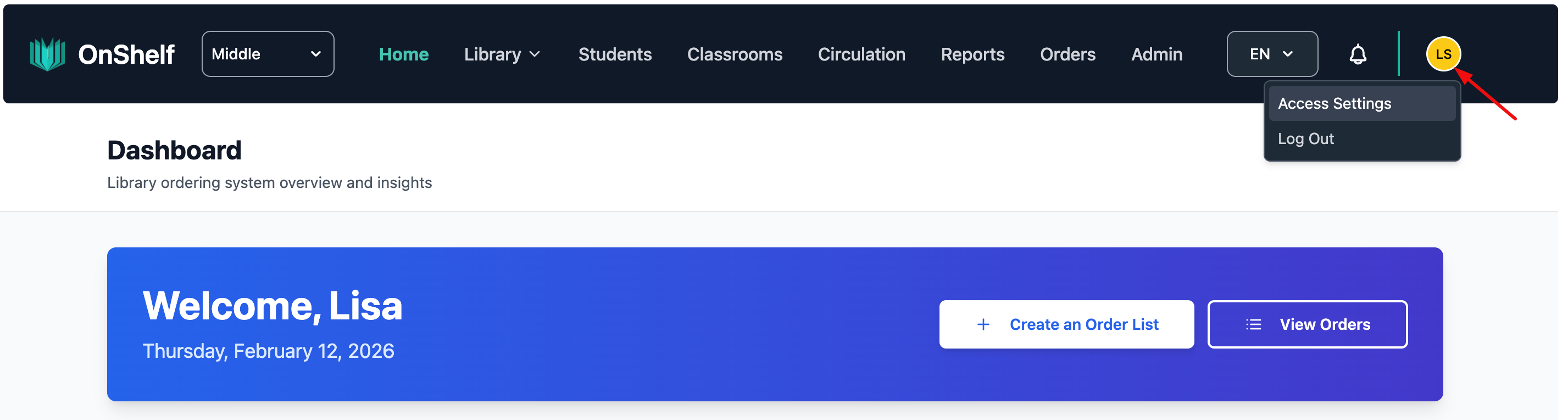
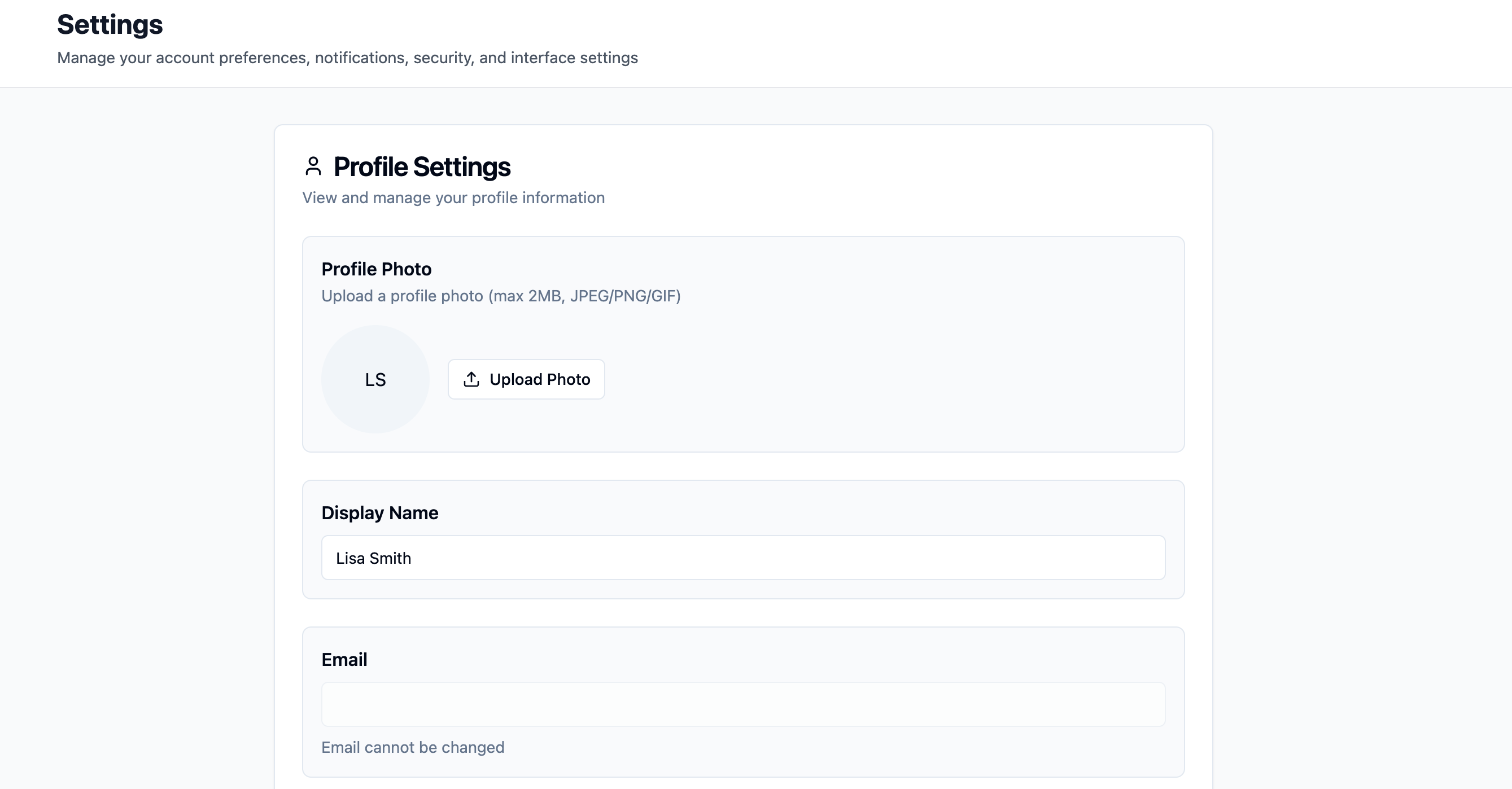
Click Settings (or Access Settings) from the User Menu to open your profile page. Here you can:
- View and edit your display name
- Update your profile photo
- Manage your notification preferences
- Update other account details
5. Logging Out
When you're finished, click your avatar in the top-right corner and select Log Out. You'll be returned to the login page, confirming your session has ended securely.