
Overview
If your books are spread across several classrooms, for example one classroom per class period, you can copy them into the one classroom you use every day. Books are copied, not moved. Every classroom you copy from keeps its books, and no student list changes.
When you're done, you can archive the classrooms you no longer need so they drop out of your everyday list.
Who This Is For
Teachers. The Copy Books button appears only on teacher accounts, and it only lists classrooms where you are the teacher.
Librarians and administrators: you won't see Copy Books on your account. Ask the teacher who owns the classrooms to do the copy from their account, or email support@bookmarked.com and we'll help.
Prerequisites
- You're signed in to OnShelf with your teacher account.
- You're the teacher on both classrooms: the one you copy from and the one you copy into.
- The classroom you're copying from has books in it.
- Books only. Copying brings over books. It does not move, combine or change any student list.
- No duplicates. If the same book is in more than one classroom, it lands in your target classroom once, and its barcodes and copies come with it.
- Archived classrooms can be copied from, but you can't copy books into one.
Steps: copy books into a classroom
- Open the classroom that should end up with the books. Go to Classrooms and click the classroom name.

- In the top right, click Copy Books.
- Under Step 1: Copy books from, check each classroom whose books you want. Archived classrooms are listed too, with an Archived tag. Book counts can take a few seconds to appear.
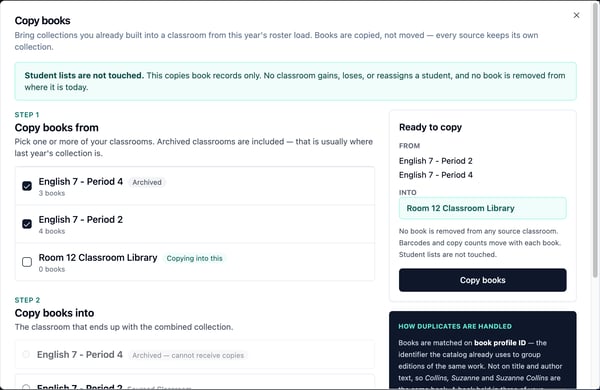
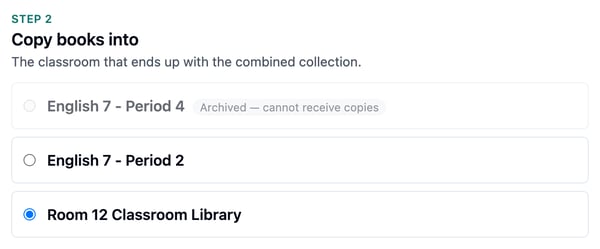
- Under Step 2: Copy books into, make sure your classroom is selected. The classroom you opened is selected for you. Archived classrooms are grayed out here and can't be picked.
- Check the summary on the right. Records selected is how many books you picked, Consolidated is how many are duplicates, and Books after copy is what your classroom will hold. Click Copy books.
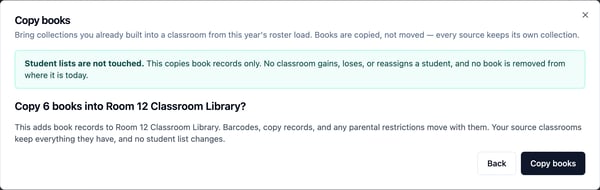
- Review the confirmation, for example "Copy 6 books into Room 12 Classroom Library?", and click Copy books. Click Back to change your choices.
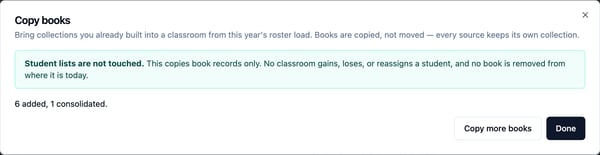
- When the copy finishes, you'll see how many books were added and how many were consolidated. Click Done, or Copy more books to run another copy.
- Your classroom's title and ISBN counts update. Refresh the page if you don't see the new books right away.

Optional: archive the classrooms you no longer need
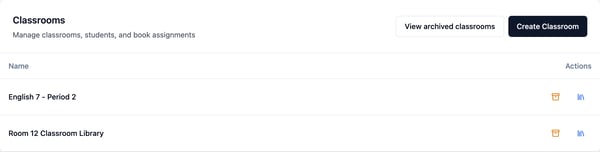
- Go to Classrooms.
- On the classroom's row, click the orange archive icon in the Actions column.
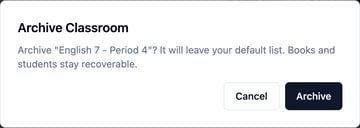
- Click Archive to confirm. The classroom leaves your everyday list. Its books stay where they are.
- To find it again, click View archived classrooms. Click the blue restore icon on its row to bring it back, or View active classrooms to return to your list.

An archived classroom keeps its books and still shows up as a source in Copy Books. It can't receive books and has no linked classes.
Troubleshooting
- I don't see Copy Books. You're signed in with a librarian or administrator account. Copy Books is for teacher accounts. See "Who This Is For" above.
- A classroom is missing from the list. Copy Books only lists classrooms where you're the teacher. Ask your librarian or administrator to check who the classroom is assigned to.
- The counts show 0 books. Wait a few seconds. The counts load after the window opens.
Need a hand? Email support@bookmarked.com.
Related Articles
- How Do I Set Up My Classroom Library? (KB-034)
- How Do I Add Books to My Classroom? (KB-035)
- Classroom Library vs. School Library: How They Work Together (KB-006)